Company Cards — Team & Agency Guide
A company card belongs to your workspace, not to the person carrying it. You set the branding once, your employee fills in their own details, and when they leave the card stays with you — same link, same QR code, handed to whoever takes over.
Available on Team, Business and Agency plans. Agencies work exactly the same way inside each client workspace — see the Agency console guide for creating clients and allocating seats.
1. Two kinds of card
A personal card belongs to the individual. They can transfer it to any email address, and it goes with them when they leave.
A company card is owned by the workspace. The employee holds and edits it, but cannot move, transfer or delete it. That difference is the whole point: it is what lets you offboard someone without invalidating everything you have printed.
2. Assign a card
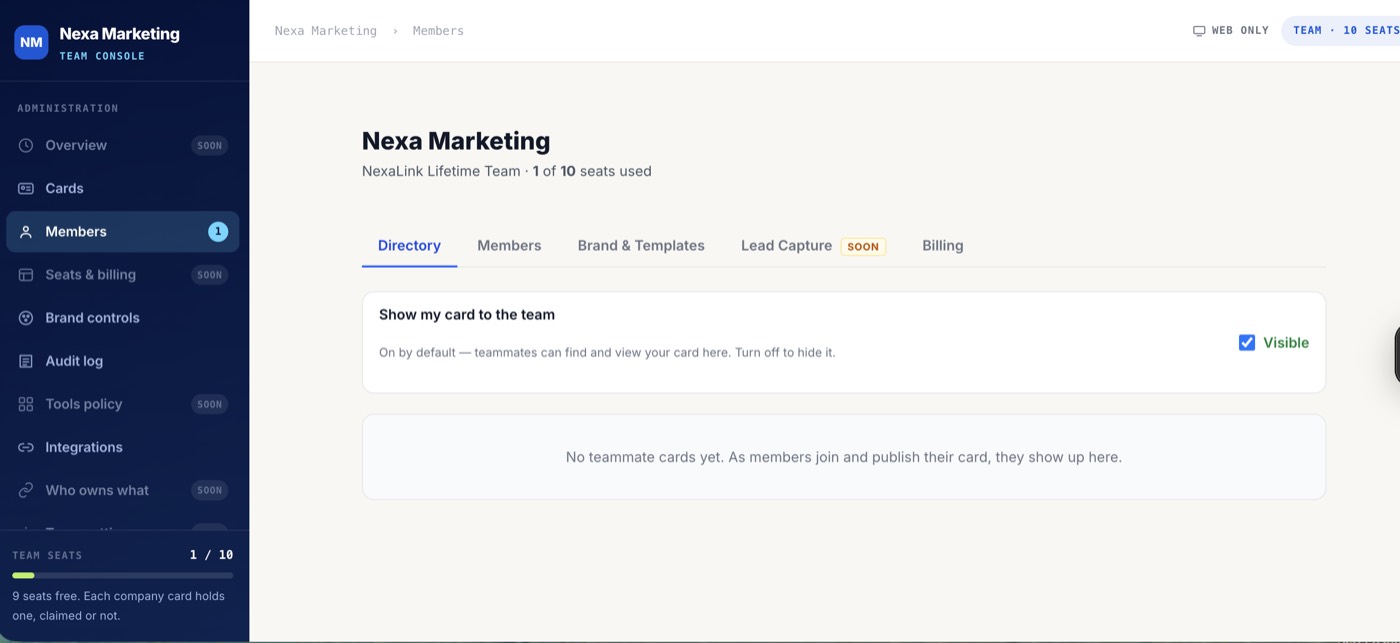
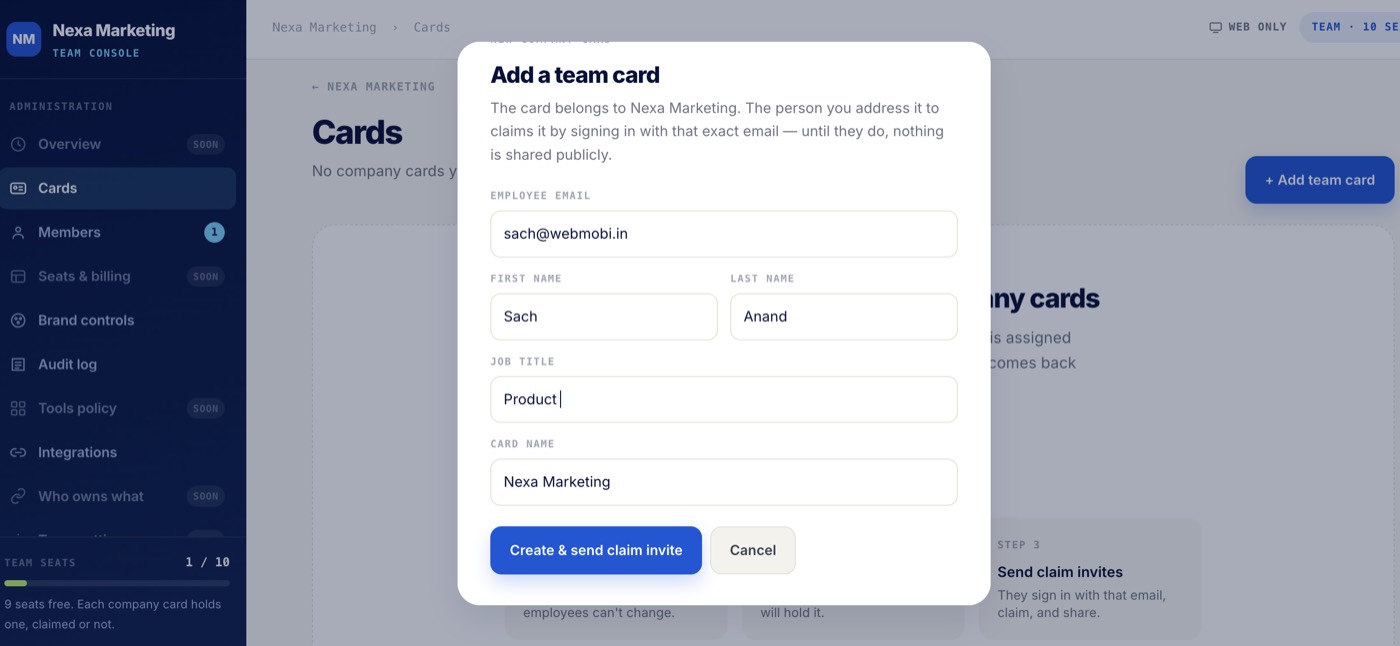
Open Cards in the team console and choose + Add team card. Enter the employee’s work email, their name and job title, then Create & send claim invite.
3. How the employee claims it
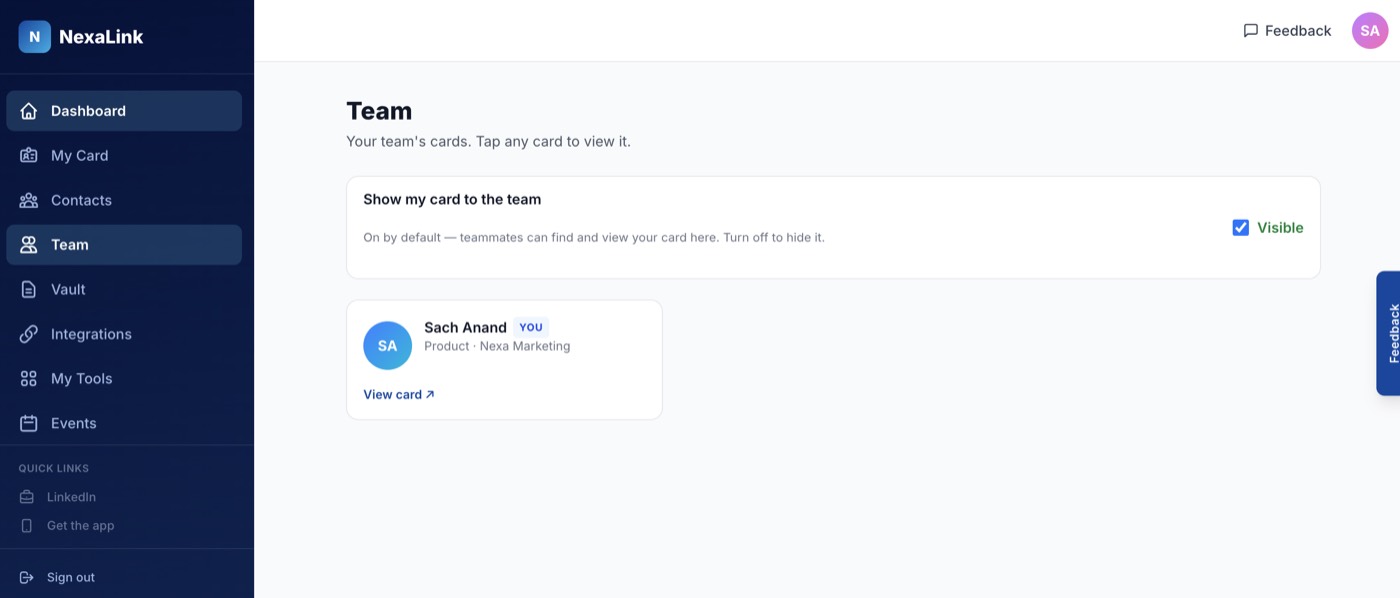
They receive an email and claim the card by signing in with the exact address you assigned it to.
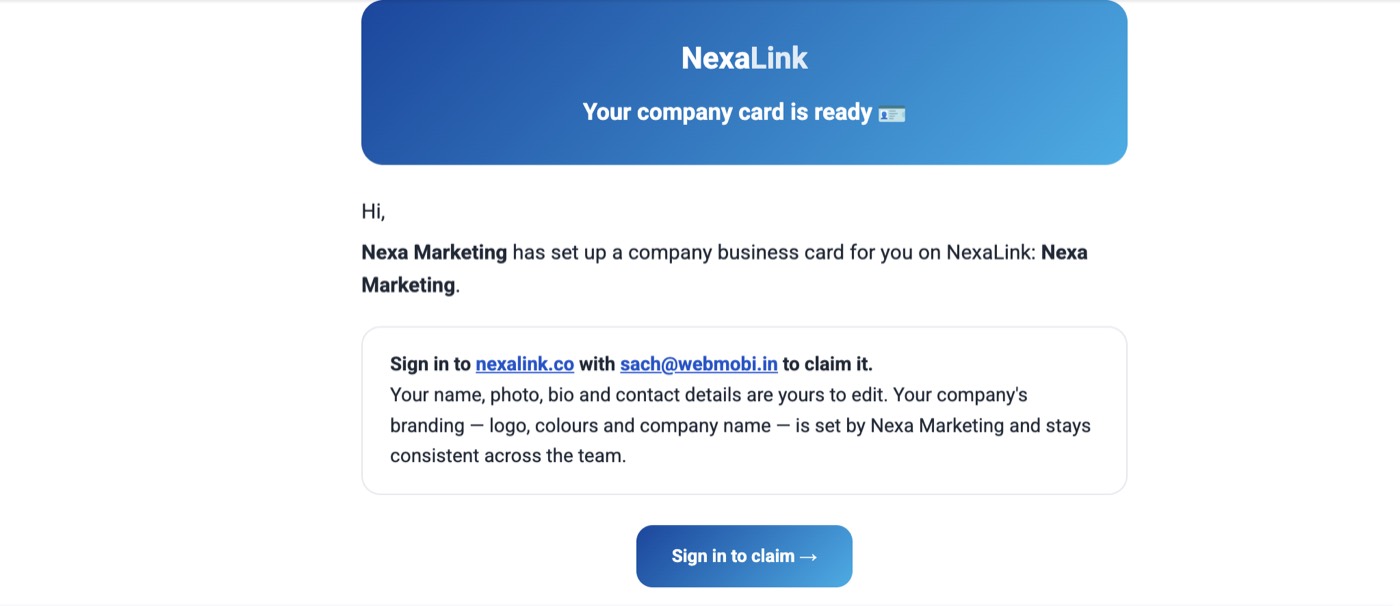
There is no click-to-claim link in that email, on purpose. If there were, forwarding it would be enough for someone else to take the card. If an employee tells you the email “has no link”, that is correct — ask them to sign in with that address and the card will be waiting.
4. Who can edit what
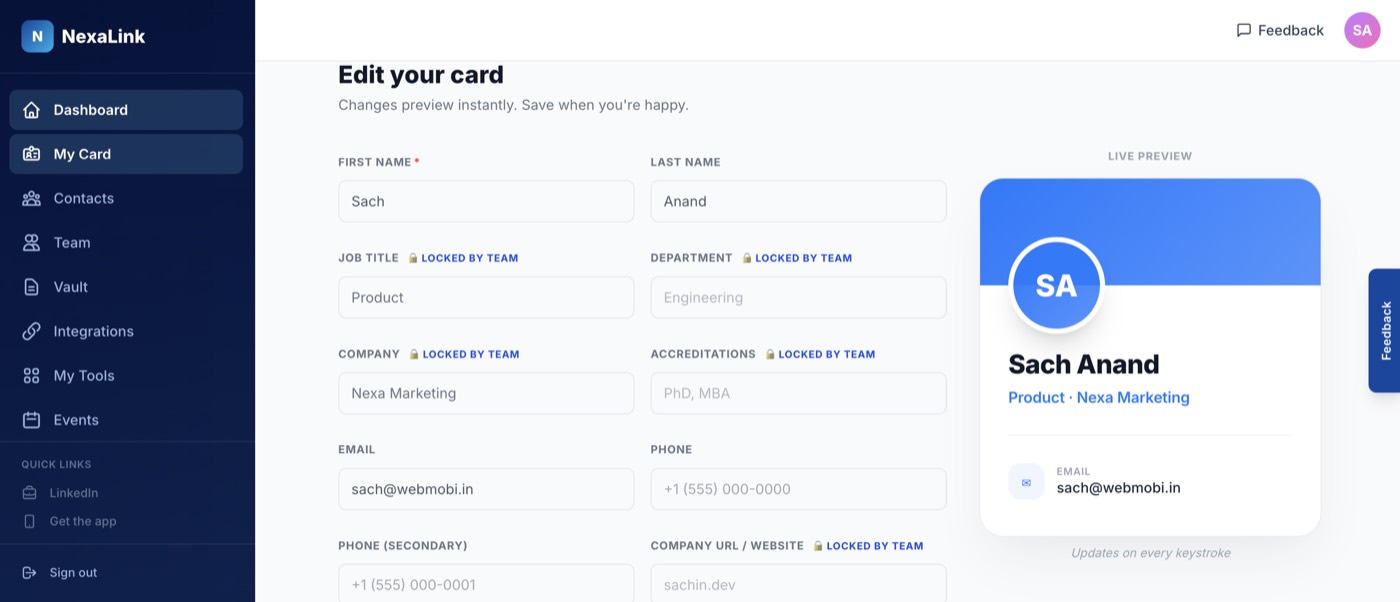
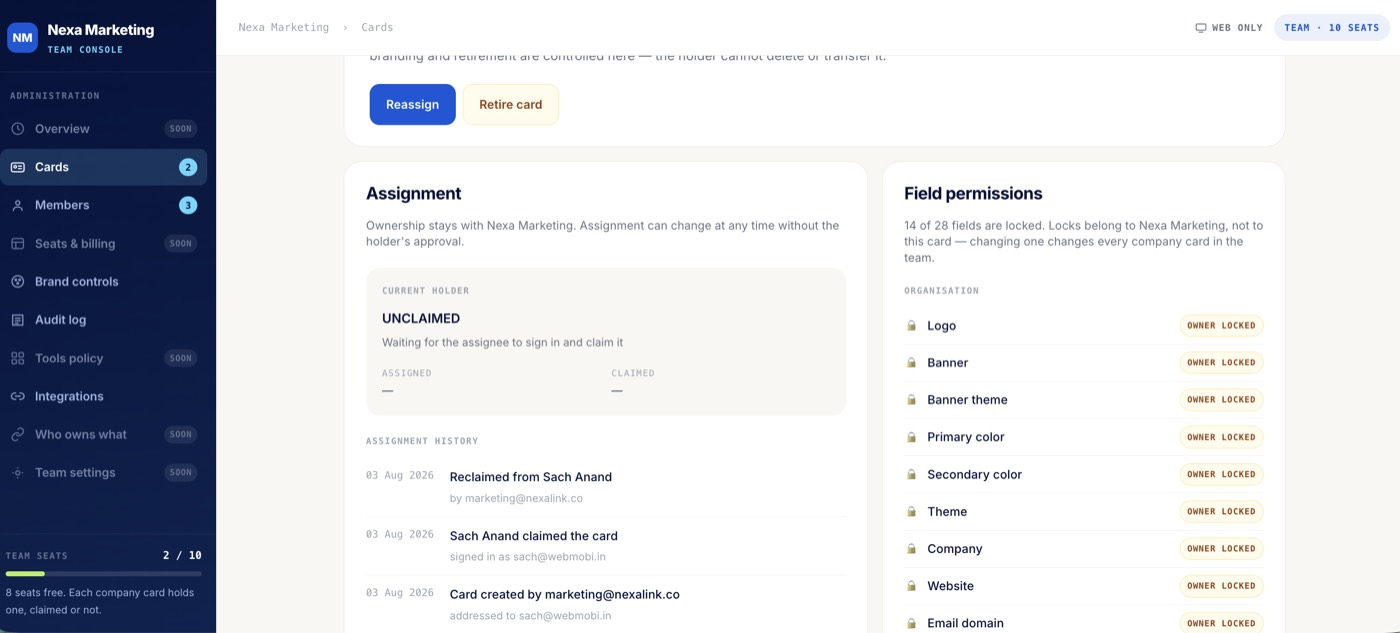
The card is shared. The employee owns their own details; the organisation owns the brand. You choose which fields are locked in Brand controls, and a lock applies to every company card in the workspace — not one card at a time.
5. When someone leaves
Two options, and neither changes the public link.
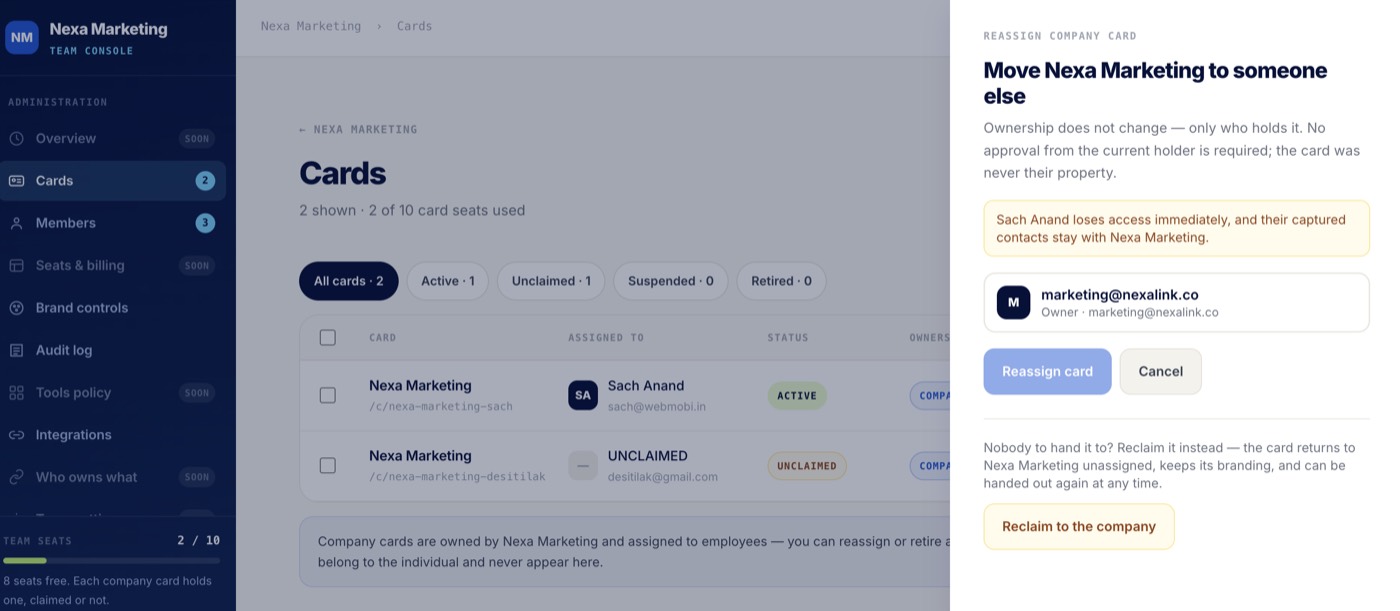
Reassign it to the next person
Choose their replacement from the workspace. You pick from a list of colleagues rather than typing an address, because a company card can only move to someone in the organisation.
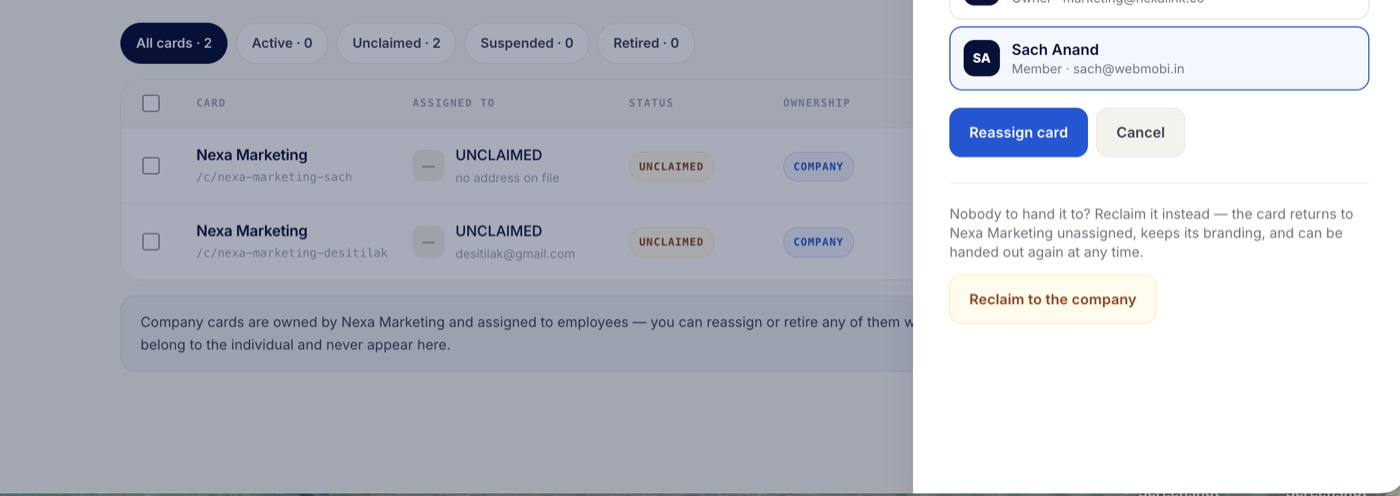
Or reclaim it until you have hired
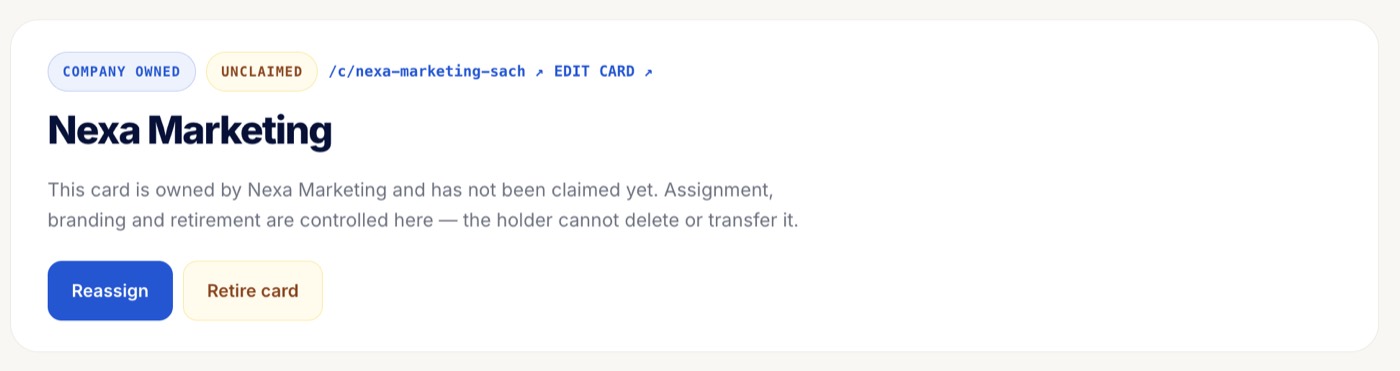
If nobody is taking over yet, reclaim the card. It returns to the company unassigned, keeps its branding, and can be handed out again at any time. While it is unassigned you can still edit it, reassign it, or retire it for good.
6. Who can do what
| Action | Employee | Admin | Owner |
|---|---|---|---|
| Edit their own details on a company card | Yes | Yes | Yes |
| Edit fields the company locked | No | Yes | Yes |
| Reassign a company card to a colleague | No | Yes | Yes |
| Reclaim or retire a company card | No | Yes | Yes |
| Release a company card outside the organisation | No | No | Yes, with confirmation |
| Transfer their own personal card | Yes | Yes | Yes |
Administering a workspace and owning its assets are deliberately different authorities. In an organisation with several administrators, any one of them being able to hand a company card to an outside address would be a governance problem — so releasing a card outside the company is reserved for the workspace owner and asks for explicit confirmation.
7. Agencies
Everything above works identically inside each client workspace. Client workspaces are sealed from one another — one client can never see another’s cards, people or contacts.
One thing worth knowing: for a workspace an agency created, the agency is the workspace owner. A client’s own administrator can reassign and reclaim cards among their people, but releasing a card outside the organisation stays with the agency. If you are a client and need that done, ask your agency.
8. Transferring a personal card
A personal card is not company property, so it moves by consent instead. On your card, choose Transfer this card, enter the recipient’s email, and they accept from their own account.
Nothing moves until they accept. Until then the card is still yours, still editable, and you can cancel the offer. Once accepted it leaves your account, and the link carries on working exactly as before.
Questions
Does the public link change when a card is reassigned?
No. The link stays the same when a card is reassigned, reclaimed or released. That is the main reason to use a company card instead of a personal one — printed business cards, NFC cards and QR codes keep working when the person holding the card changes.
Can an employee transfer a company card to someone else?
No — not to an outsider, and not even to a colleague. An employee can use and edit the card, but moving it is an administrator's job. This is what stops a company asset leaving with a departing employee.
Can a team admin give a company card to someone outside the company?
No. Only the workspace owner can release a company card outside the organisation, and it requires an explicit confirmation because it transfers ownership rather than just changing who holds the card.
The claim email has no link to click. Is it broken?
No, that is deliberate. A company card is claimed by signing in as the exact address it was assigned to. If the email carried a claim link, forwarding it — or anyone reading it — would be enough to take the card.
The person I want to reassign a card to is not in the list.
Only active members of the workspace appear. They have most likely been invited but have not accepted yet. Ask them to sign in and accept the invitation, then reassign the card.
Can I assign a card to someone who does not have a NexaLink account?
Yes. Assign it to their email address and the card waits as unclaimed until they sign up with that address.
Does an unclaimed company card use a seat?
Yes. Every company card holds one seat, whether or not it has been claimed.
What happens to contacts an employee captured on a company card?
They stay with the company. Reassigning the card does not move the contacts to the next holder.
Can an employee delete a company card?
No. The organisation owns it, so only an administrator can retire it.
Need a hand? Email support@nexalink.co with the card’s public link and your workspace name — we can see its full assignment history.