MCP Setup Guide
Connect NexaLink to ChatGPT
Add one URL as a ChatGPT plugin and run your card, contacts and follow-ups by chat. About a minute, no API keys, no client secret.
https://nexalink.co/api/mcpLooking for “Add custom connector”? It isn’t called that in ChatGPT.
ChatGPT calls them Plugins. Start at chatgpt.com/plugins and click the + button at the top right — there is no menu item with the word “connector” in it. Using Claude instead? Follow the Claude guide →
Turn on developer mode first — or the + button won't be there
This is the step everything else depends on, and it's the one people miss. In ChatGPT on the web, open Settings and enable developer mode (it sits with the advanced/connector options; OpenAI moves it around, so search Settings for “developer” if you don't spot it). Until it's on, the Plugins page has no + button and there is no way to add a custom server — which reads as though the feature doesn't exist on your account. Turn it on, then reload.
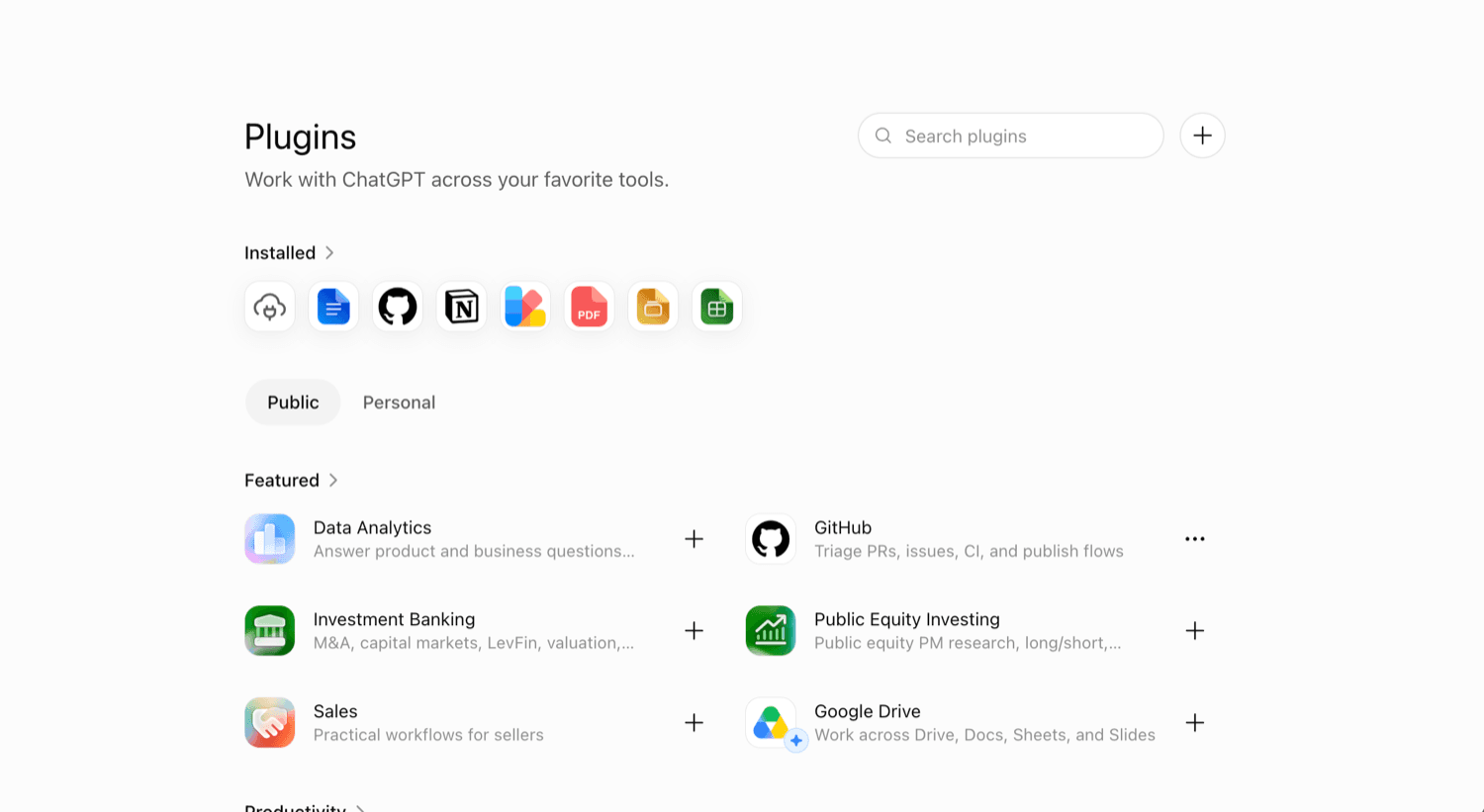
Open the Plugins page and click +
Go to https://chatgpt.com/plugins — it's titled “Plugins — Work with ChatGPT across your favorite tools.” Click the + button at the top right, beside the “Search plugins” box. Note the vocabulary: ChatGPT calls these Plugins, so there is no menu item containing the word “connector”.
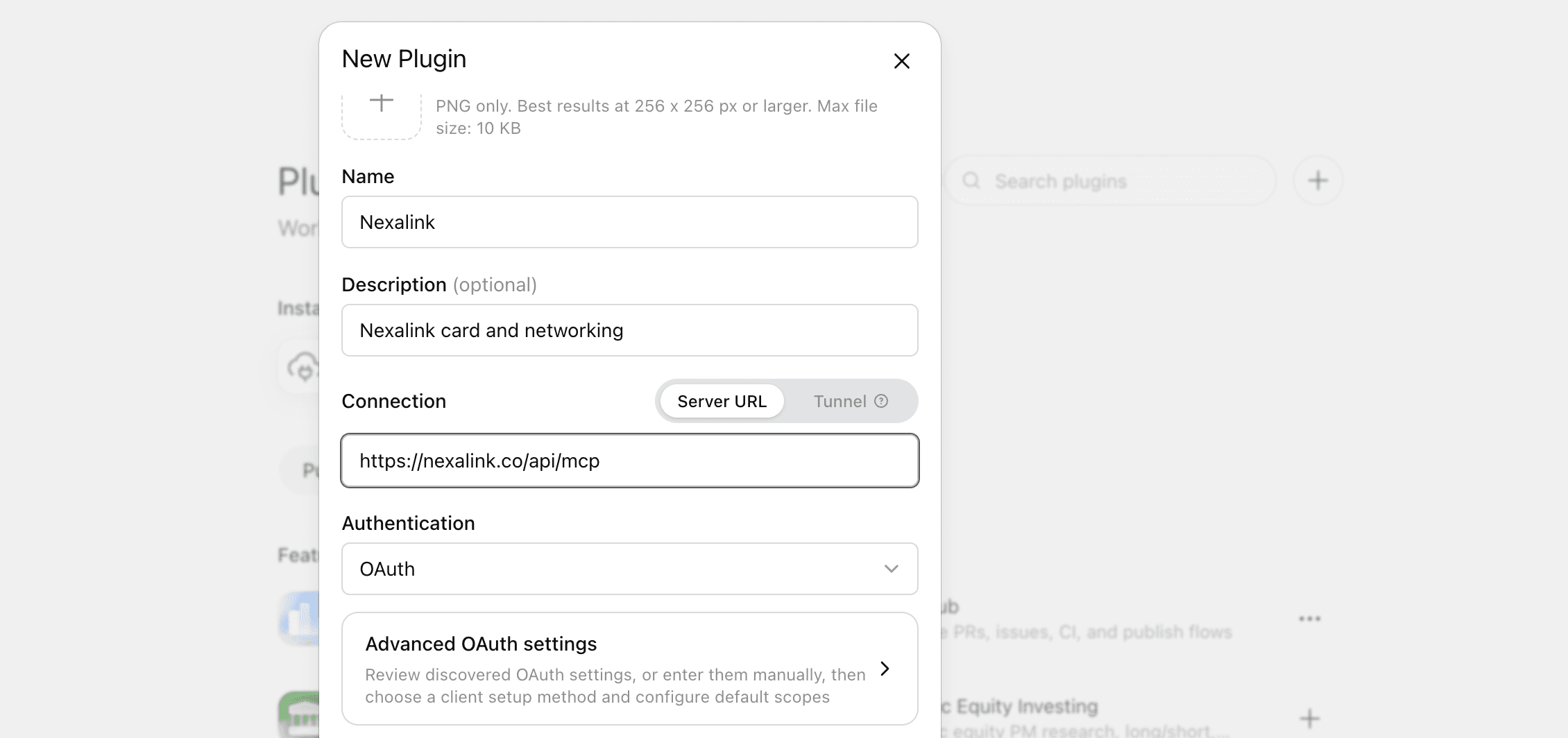
Fill in the New Plugin dialog
The “New Plugin” dialog opens. Set Name to “NexaLink” — Icon and Description are optional (“NexaLink card and networking” works). Leave Connection on Server URL, not Tunnel, and paste https://nexalink.co/api/mcp into the URL field. Ignore the https://example.com/sse placeholder: it's only a hint, and our server speaks streamable HTTP, which ChatGPT supports.
Set Authentication to OAuth — and leave Advanced alone
Choose OAuth in the Authentication dropdown. Don't open Advanced OAuth settings, and don't create a Client ID or Client Secret: NexaLink supports OAuth Dynamic Client Registration, so ChatGPT discovers and registers everything itself once it reads the URL. ChatGPT also warns that custom MCP servers introduce risk — that notice appears for every custom server, not just ours. Confirm to continue.
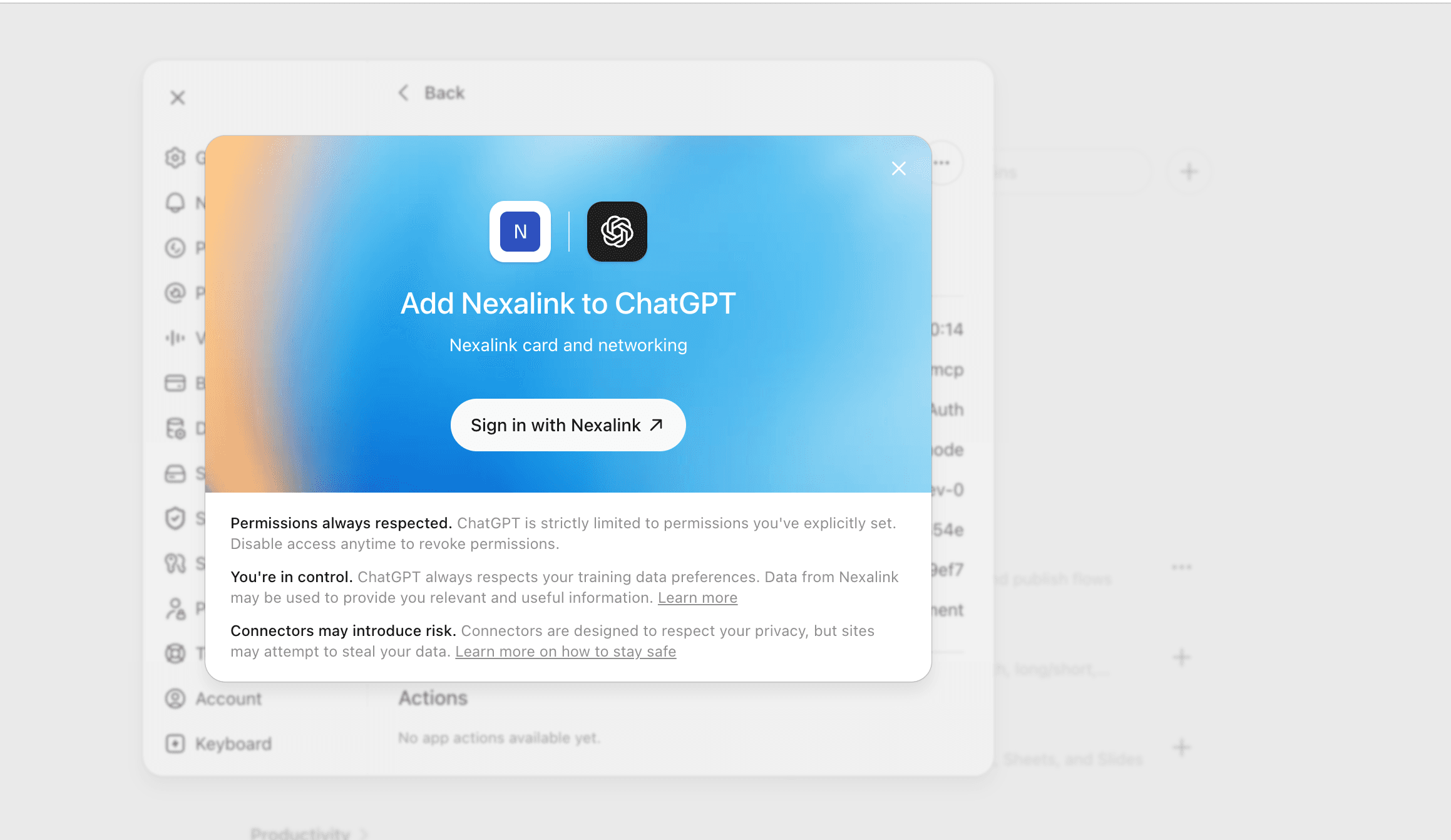
Sign in with NexaLink
ChatGPT shows an “Add NexaLink to ChatGPT” card. Click Sign in with NexaLink — it opens NexaLink in a new tab, where you sign in with your usual account.
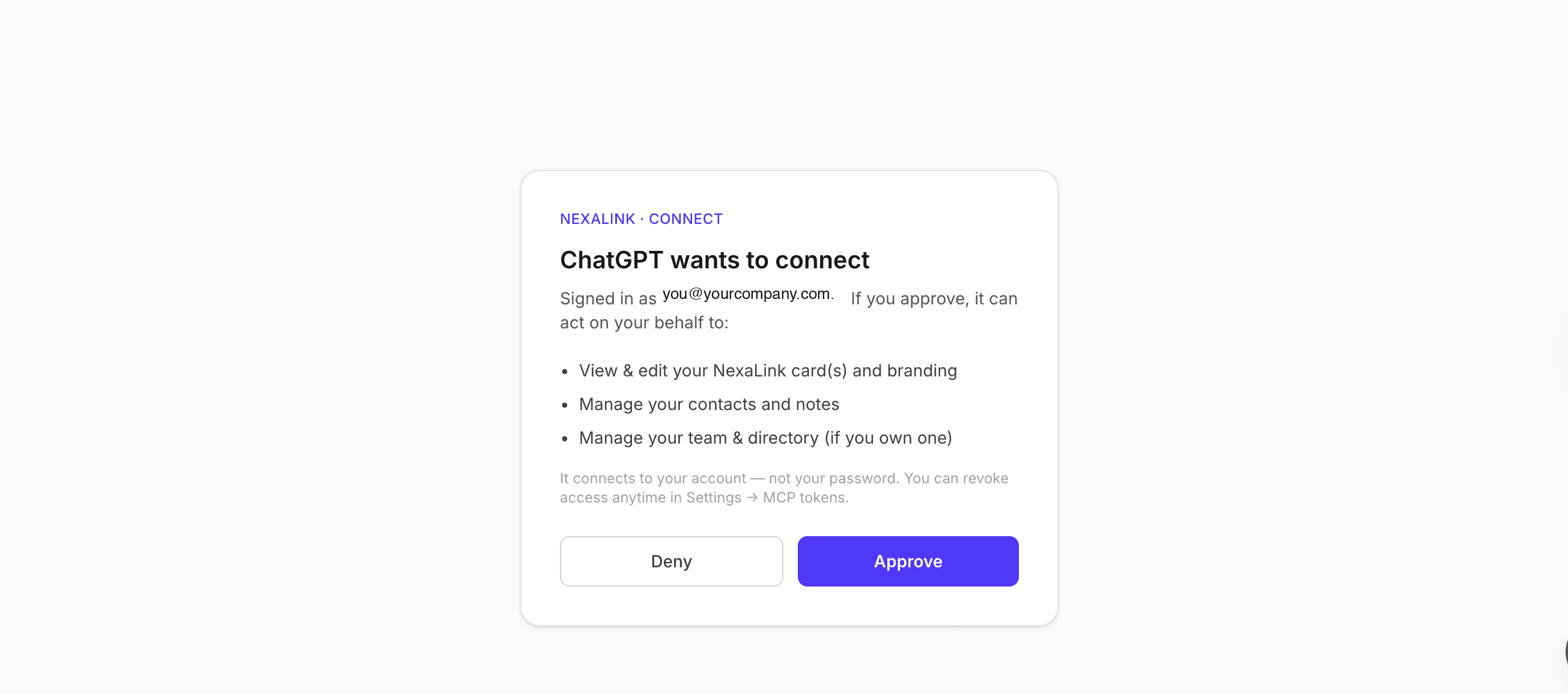
Approve what it can do
NexaLink shows exactly what you're granting: view and edit your card(s) and branding, manage your contacts and notes, and manage your team and directory if you own one. Click Approve. It connects to your account, never your password, and you can revoke it anytime from Settings → MCP tokens.
You're connected — tune the permissions
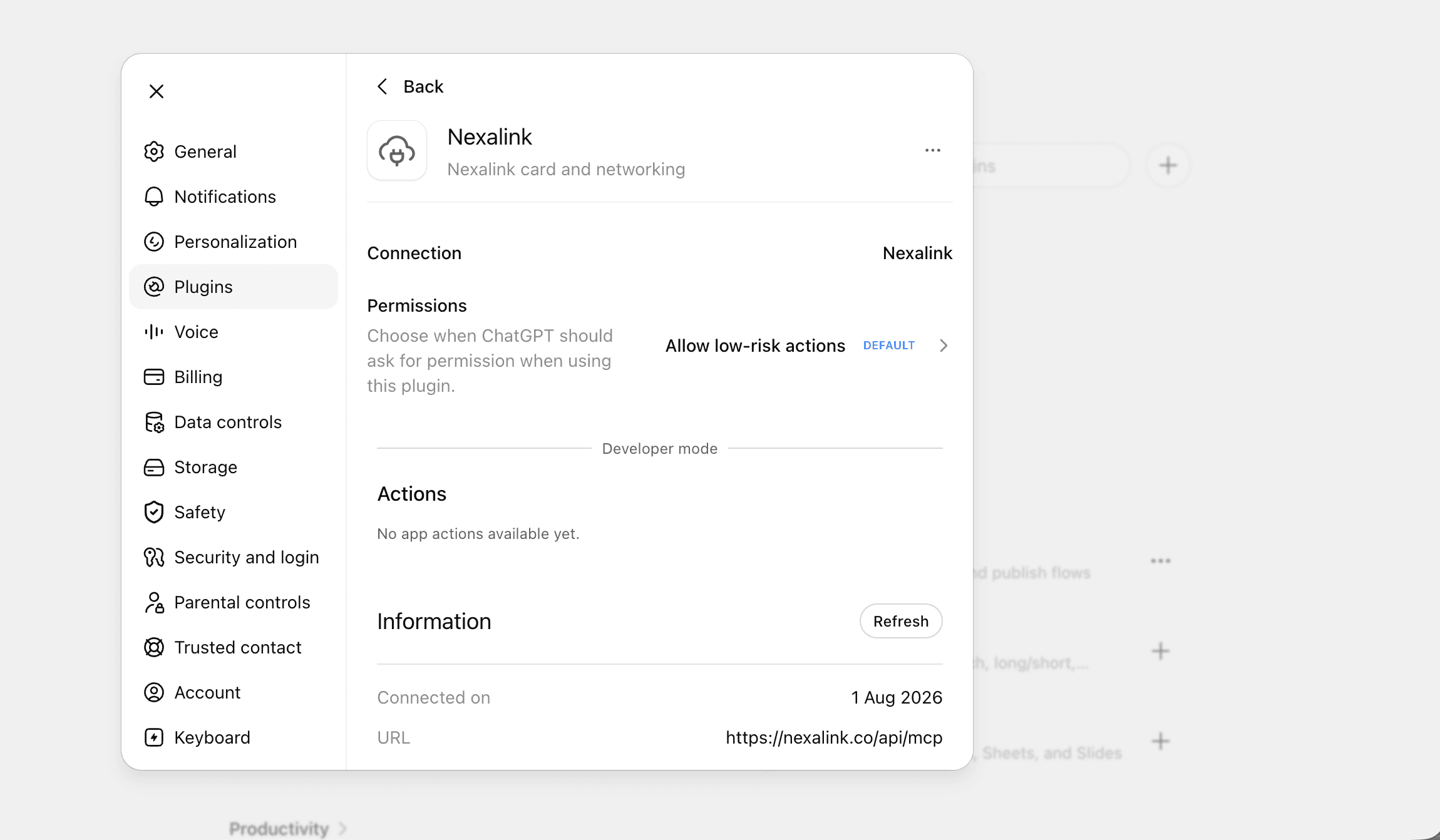
NexaLink now appears under Settings → Plugins with its 25 tools (13 read-only, 12 write or delete). Permissions defaults to “Allow low-risk actions”, meaning ChatGPT asks before anything that writes — a sensible default worth keeping. The same screen shows the connection URL and lets you disconnect anytime.
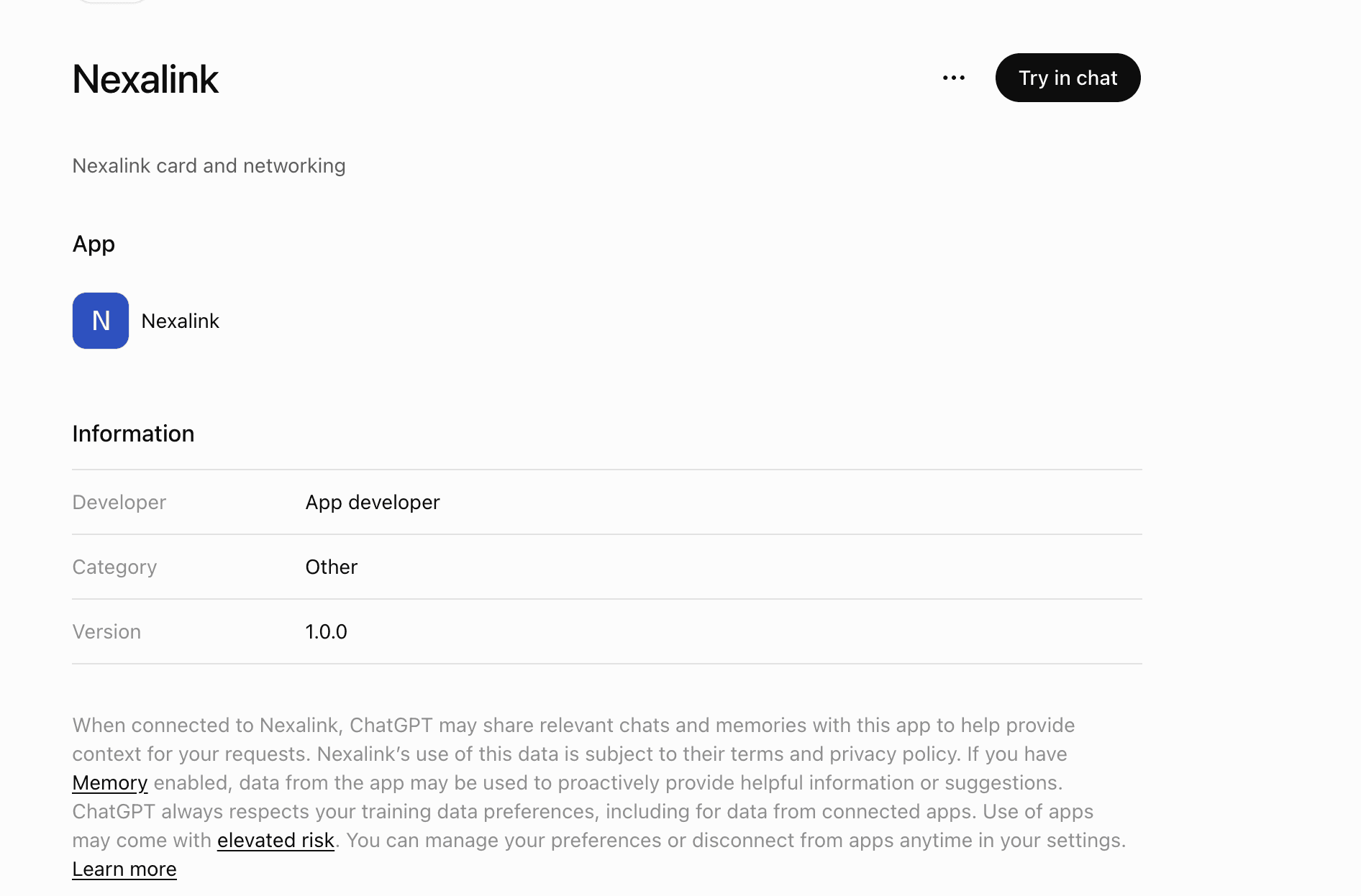
Start a chat
Open NexaLink from your plugin list and click Try in chat, or just type @NexaLink in any conversation. That's it — you're done.
What it looks like
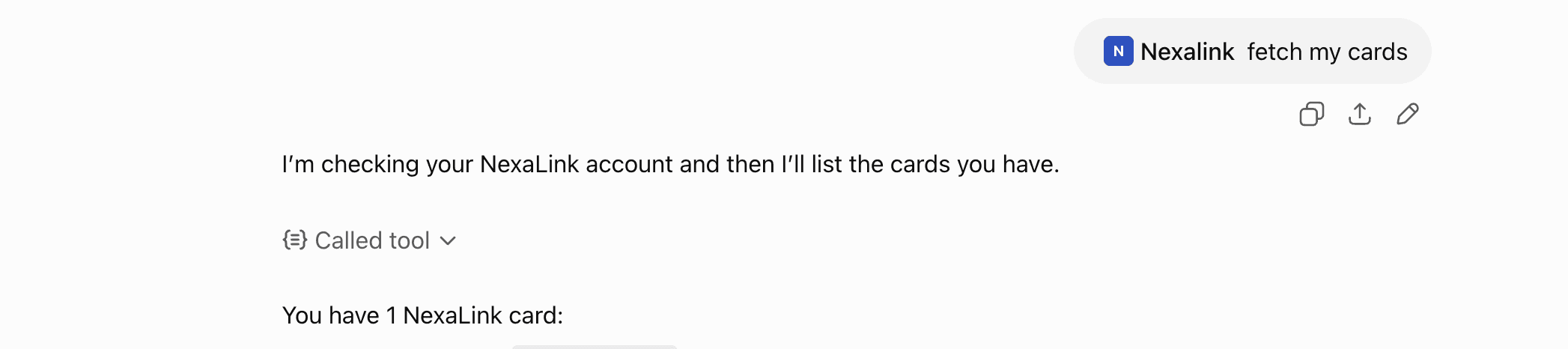
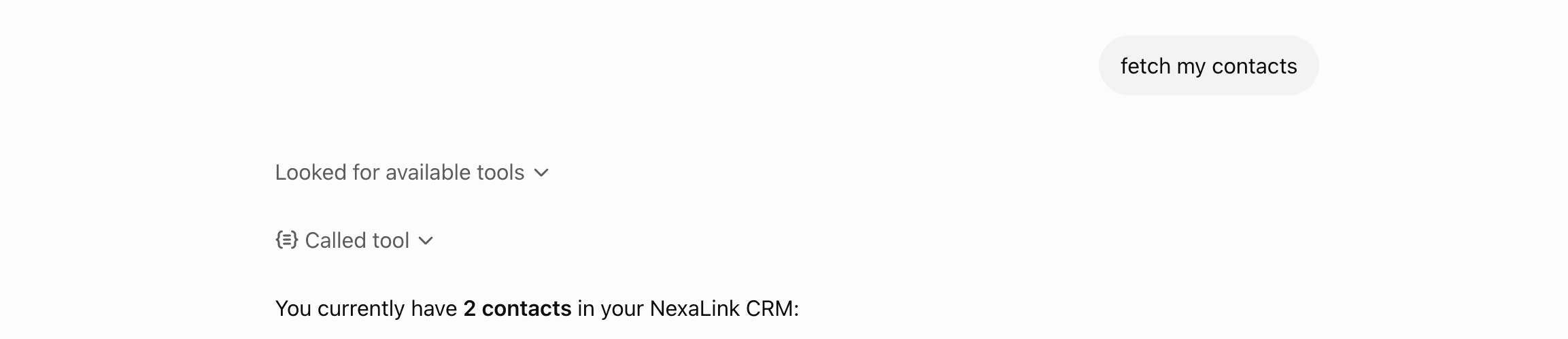
Real answers from a real account — note the Called tool row, which is ChatGPT reaching into NexaLink rather than guessing.
Things to ask
Ask in plain English — ChatGPT picks the tool and checks with you before anything that writes.
Prefer a token to OAuth?
Some clients — and some locked-down workspaces — can’t complete an OAuth round trip. Create a personal access token under Settings → MCP tokens (it’s shown once) and send it as a bearer header instead:
{
  "mcpServers": {
    "nexalink": {
      "url": "https://nexalink.co/api/mcp",
      "headers": { "Authorization": "Bearer mcp_live_..." }
    }
  }
}
Treat that token like a password — anyone holding it can act as you. Revoke it from the same screen.
Frequently asked
I can't find “Add custom connector” anywhere in ChatGPT.
You won't — that wording is Claude's, and we used to use it here too. In ChatGPT the feature is called Plugins. Two things have to be true before you can see it: you must be on the WEB (not the mobile app), and DEVELOPER MODE must be switched on in Settings. With developer mode off there is simply no + button on https://chatgpt.com/plugins, which is exactly what "the option isn't there" looks like.
The + button still isn't there after enabling developer mode.
Custom MCP plugins are a web feature on paid ChatGPT plans, and on some accounts they sit behind a developer/advanced setting that has to be switched on first — you'll see a “Developer mode” section on the plugin's settings page once connected. OpenAI moves this around, so check their own help centre for the current requirement for your plan rather than trusting any screenshot, including ours. Everything on the NexaLink side works the moment ChatGPT can reach the URL.
Do I need an OAuth Client ID or Client Secret?
No. Leave Advanced OAuth settings untouched. NexaLink supports OAuth Dynamic Client Registration, so ChatGPT registers itself automatically — there is nothing to create or paste.
Should I pick Server URL or Tunnel?
Server URL. Tunnel is for exposing a server running on your own machine. NexaLink is hosted, so paste https://nexalink.co/api/mcp under Server URL.
ChatGPT warns that custom MCP servers introduce risk. Is NexaLink safe?
That warning appears for every custom MCP server, because ChatGPT cannot vouch for servers it doesn't operate. NexaLink connects over OAuth rather than your password, tokens are short-lived and audience-bound, refresh tokens rotate with theft detection, and tokens are stored only as hashes. The plugin can reach only your own account and only actions you could take yourself.
Does this cost extra, or need a particular NexaLink plan?
No extra cost from us. MCP access is not gated on a NexaLink tier — if you can sign in, you can connect. Your ChatGPT plan is the only prerequisite.
Can I use Claude instead?
Yes, and the flow is slightly different. See our Claude guide — the same server URL, but Claude calls them connectors rather than plugins.
Using Claude as well? Connect NexaLink to Claude → · Want the security detail? Read our Security page.